
Why Create a Sport Booking Product
To accept clients to book your listed service(s), you will need to create a sport booking service (aka bookable product) via the steps below. The system will automatically confirm and manage the booking. Additionally, all payments are also managed after the product is linked to your sports listing. Therefore, for new ASP vendors, you will create a sports listing after you have created a bookable service and link the 2 together.
For your convenience, the Subsneeded team will create a sample booking for you in your new ASP vendor account. You will see this booking once you log into your ASP vendor account for the first time. Feel free to modify this bookable product or add a new product from scratch if you prefer.
Creating a Bookable Product
- Firstly, login and click on the following link to go directly to your Vendor Administration page
- Then Go to: Products > Add New.
- Enter a title and description for your sport booking product.
- Scroll down to Product Data and select Bookable Product in the dropdown menu
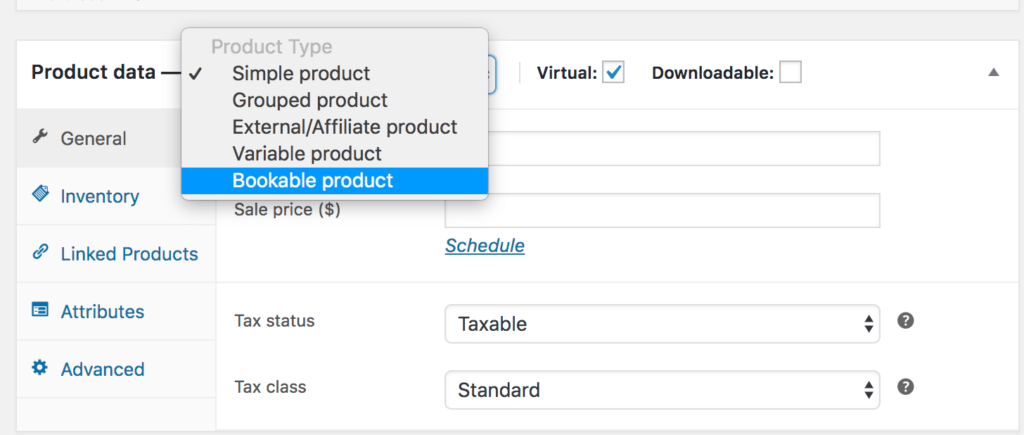
Tick the Virtual checkbox since you are selling a service and the listing does not charge shipping. This omits the Shipping Costs tab from your listing. Fields will change to reflect bookable products.
General settings (Under Product Data)
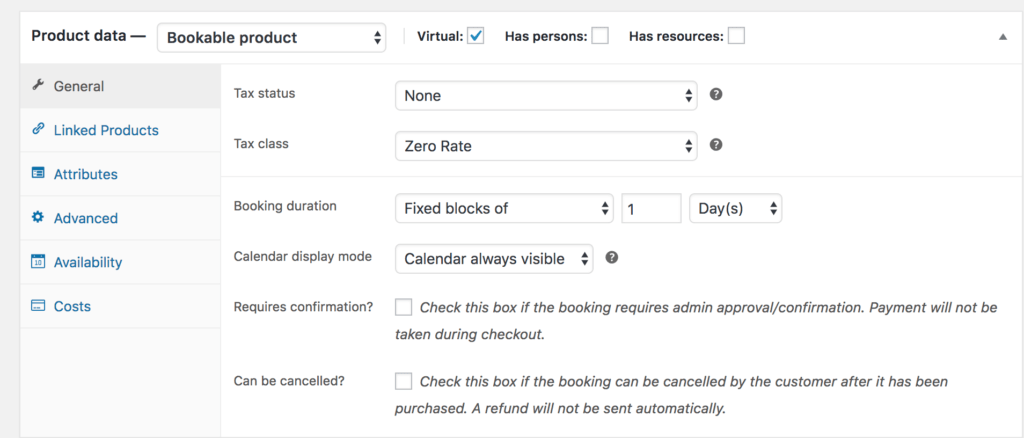
The first settings are booking duration, calendar display and confirmation preferences.
Commission on Sport Booking
Sport Booking Duration
This determines how long a booking lasts. Therefore, the duration can be defined by you (fixed block) or customer defined (they need to input on the front-end). Duration units can be Hours, Minutes, Days or Months.
Fixed blocks have a set duration that you define. Therefore, your client can only choose one block which will last the defined amount of time. For example, a basketball games lasts one and a half hour and you can only book one at a time. If you are unsure which type of duration to use, select Fixed Blocks.
Customer-defined blocks have a set duration, but the customer can choose how many blocks they want. For example, the coaching session is offered out in hourly intervals, and the customer can define how many 1-hour blocks they would like to reserve.
If you set your Booking duration to be customer defined:
- A minimum and maximum allowed value can be included in the General tab. This allows for a more flexible starting schedule.
- It is possible to use 30-minute blocks and set the minimum to 2 blocks. Your customers now need to book at least one hour, and can add increments of 30 minutes.
- A customer-defined duration with blocks in minutes/hours will display a dropdown.
A booking can be set in blocks using minutes, hours, days, weeks, and months. If using hours and minutes, you can specify what time the bookings start.
Calendar display mode
Select Calendar always visible or Display calendar on click. By default the calendar is set to always show.
If the Booking duration is set to be Customer defined with a unit of Days, then another option will be shown to enable the calendar range picker. Enabling this allows customers to select a start date and an end date for their booking within the calendar itself.
Sport Booking Requiring Confirmation
If the booking needs to be reviewed by an Admin before confirmation, tick the Requires confirmation? checkbox. Rather than take payment at checkout, the user inputs details and submits them for approval.
Bookings requiring approval will remove other items from the cart. Therefore, they must be checked out alone so payment gateways can be safely disabled.
If the Requires Confirmation? checkbox is ticked:
- the Check Availability option will be the only payment gateway presented when checking out
- other items will be removed from the Cart when this bookable product is added to the Cart
Once the booking is approved, the customer receives another email to then submit payment.
Allowing Sport Booking Cancellation
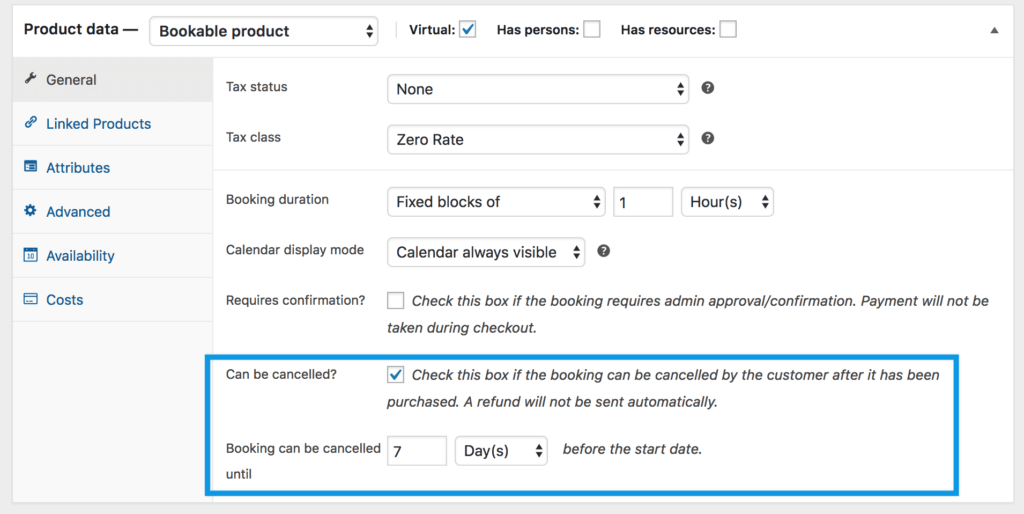
You may choose whether you want the user to have the option to cancel their booking. After selecting the option Can be cancelled?, two fields appear that allow you to choose how many Minutes/Hours/Days/Months prior to the start date that customers can cancel a booking.
Suggestion. The Subsneeded team suggests you NOT enable the booking cancellation feature. It is best practice to let the client to reach out to you first so you can potentially make alternate arrangements.
Linked products
This feature is not currently available. Please disregard.
Attributes
This feature is not currently available. Please disregard
Sport Booking Availability Settings
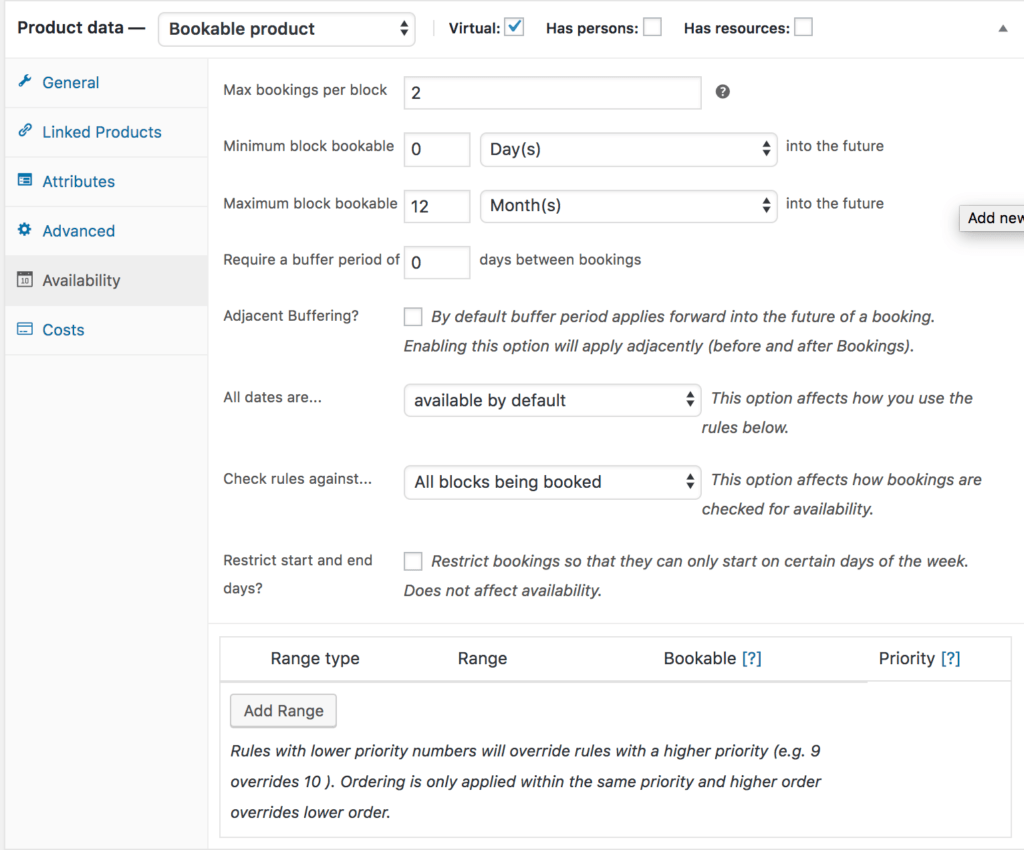
Availability (what slots can be booked) can be controlled via the Availability tab. The first options allow you to define dates that can be booked:
Max bookings per block
This setting allows multiple bookings at the same time. With a fixed booking of 1 day and maximum bookings per block set to 2, then each day you can accept two bookings.
Minimum/Maximum block bookable into the future
If today is March 1 and you set minimum block bookable to 1 month into the future, then the first date a customer could book would be April 1. The same applies to the maximum date bookable.
Require a buffer period between bookings
Based on the unit of time set for the booking (minutes, hours or days), you can specify a period of time after a bookable slot that is unavailable for anyone else to book. For example, if you offer services in 1-hour blocks and wish to have a break of 1 hour between them, you can specify a buffer period.
If you prefer to add a buffer before and after your appointments, tick the Adjacent Buffering checkbox. This option adds the specified block both before and after each booking. Defining a buffer period of one hour between booking with adjacent buffering will result into 2 hours between bookings.
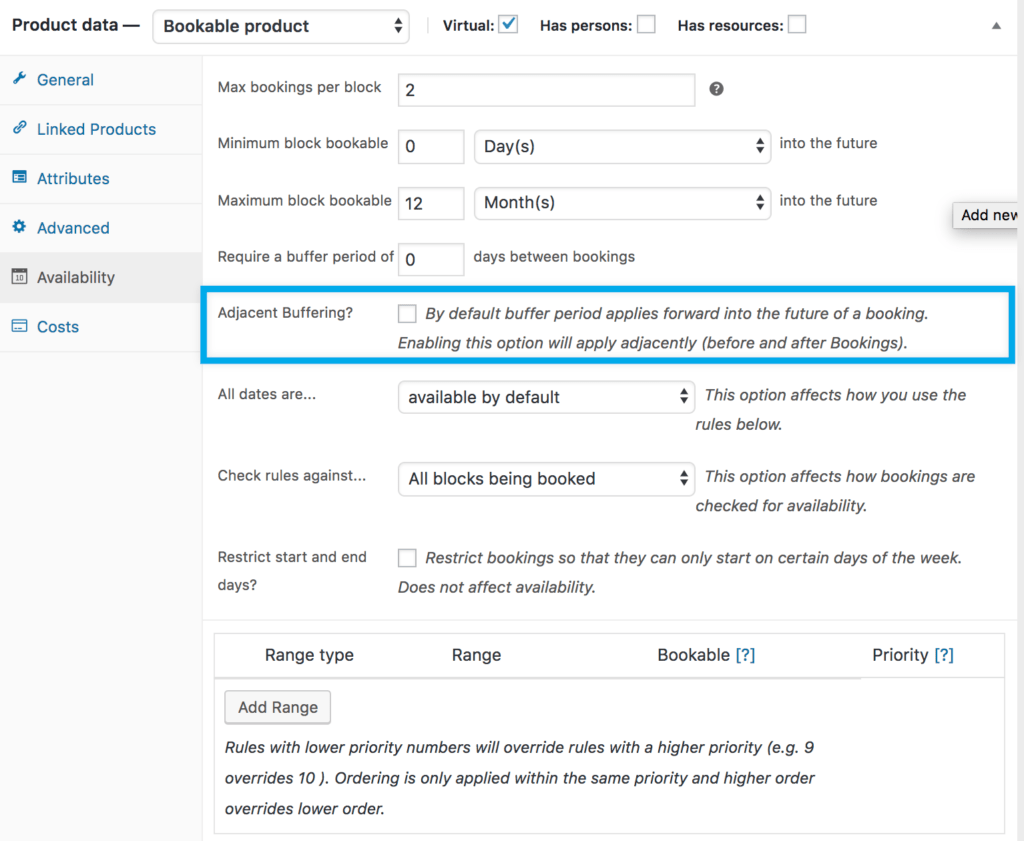
Buffer periods are always defined in the same time measurement (minutes, hours or days) chosen for blocks. If you want to have a 30-minute buffer between your 1-hour appointments, be sure to use 60-minute blocks instead of 1-hour blocks.
All dates are…
Depending on how you want to set up availability, this option allows you to set available by default or not available by default. Available by default means all blocks are available and you can specifically turn some off with rules, where not available by default means all blocks are not available and must be turned on through availability rules.
Check Sport Booking rules against
You have two options:
- All blocks being booked – This checks all available blocks within a duration. For example if a customer chooses to book for 5 days and 1 block is equal to 1 day, it will check availability for all 5 days.
- Starting block only – This checks the first block the user selects. For example if a customer chooses to book for 5 days and 1 block is equal to 1 day, it will only check availability for the first day.
Restrict start and end days
Say you have a weekly rental, but you only allow customers to start their rental on Fridays.
- Tick the box.
- Select the day (in this case Friday), or day(s) you would like to restrict the booking to start on.
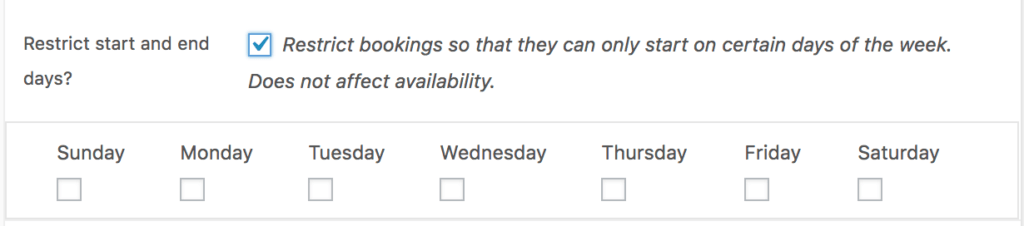
This does not affect availability; other days are still available, they just cannot be selected as the day(s) that bookings start on.
Custom Availability Range
You can set up specific availability rules, such as availability for:
- Months
- Day of the week
- Time
- Specific date
To add a rule, select Add Range:

A new row is created, where you can choose a range type, from/to, whether it’s bookable or not (yes or no) and a priority number.
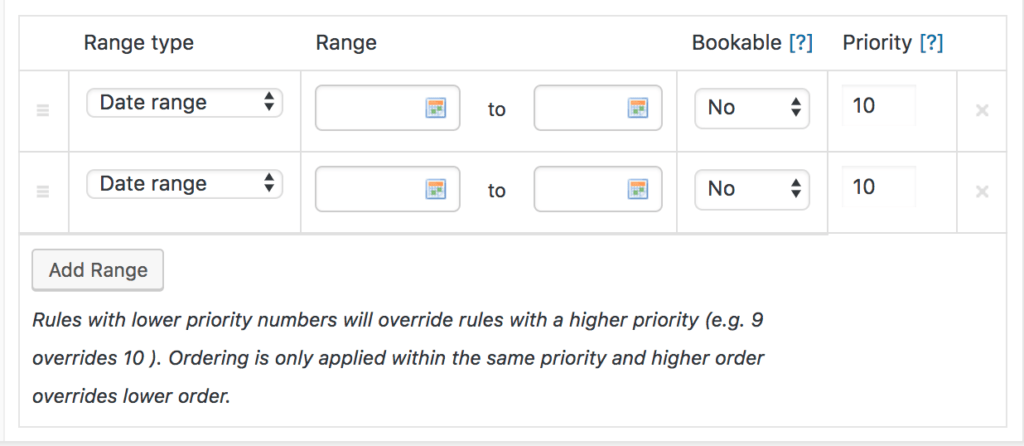
The from/to values differ based on the range type:
- Date range – from/to will show a datepicker/calendar selection field
- Range of days – from/to will show a dropdown of days of the week (Monday to Sunday)
- Range of months – from/to will show a dropdown of months (January to December)
- Range of weeks – from/to will show a dropdown of weeks (1 to 52)
- Time ranges – from/to will show time inputs
- Date Range with time – period with a start date/time and an end date/time. Range applies from start time on the start day to end time on the end date.
- Date Range with recurring time – set based on a custom date range. Range is repeated on each day in the date range.
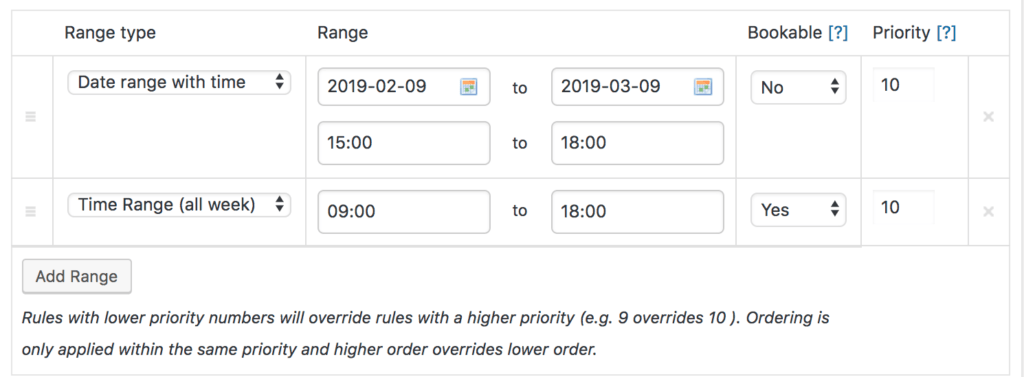
Note that the time ranges are not opening hours, but booking hours. If you offer 1-hour time blocks and your shop is open from 9:00 am to 6:00 pm, your last booking is at 5:00 pm, not 6:00 pm.
By default, Global availability rules take priority over product level availability rules and product availability rules take priority over resource priority rules. The order can be changed using the priority numbers. A lower priority, irrespective of context, overrides any other context with higher priority number. For example, a 9 will always override 10, even if 10 is on the Global level. If multiple rows have the same priority, the rules higher on the list will take priority.
Rows can be removed by clicking the X on the far right, or dragged and dropped to sort using the handle on the far left.
Also be aware that availability options can be set up globally if all bookable products share some dates. To read more about Global availability, see Booking Settings.
Costs for Bookable Products
Costs for specific slots are controlled from the Costs tab.
Subsneeded was founded for sports lovers all around the world but the platform does incur costs to keep running. Athletic Service Providers are expected to charge a fee for their services. However, due to the current pandemic, the Subsneeded team is allowing Athlete Service Providers to create listings and bookings that accept FREE service bookings until further notice. Please click here for more details.
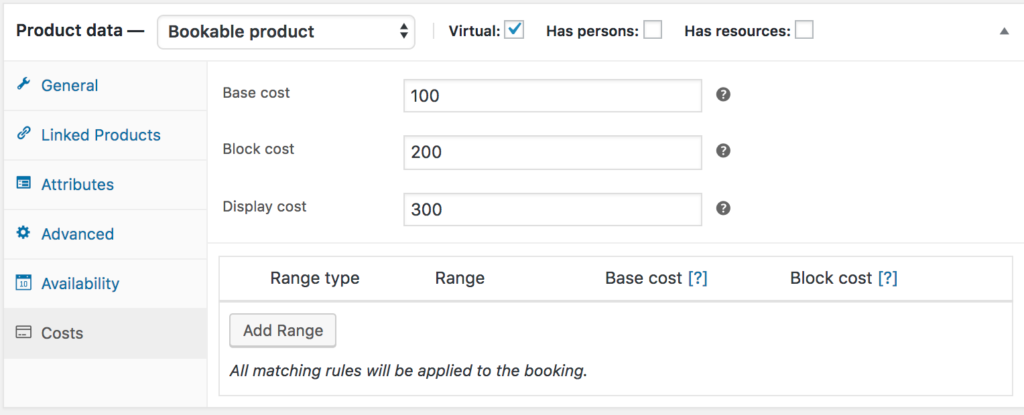
The two main costs you can add are Base cost and Block cost.
- Base cost is applied regardless of a customer’s choices on the booking form.
- Block cost is the cost per block that was assigned in the General tab. If a customer books multiple blocks, this cost is multiplied by the number of blocks booked.
Display cost does not affect the actual cost of the product. In the example above, the product page displays 300 on the frontend. The cost is displayed to the user on the frontend. Leave blank to have it calculated for you. If a booking has varying costs, the lowest available cost is shown and is prefixed with the word “From:”
Beneath the display cost, you have an area where you can define extra costs. This works similar to availability. Click Add Range to begin:

A row appears where you can input the range type, from/to and cost:

The from/to values differ based on the range type:
- Date range – from/to will show a datepicker field
- Range of months – from/to will show a dropdown of months (January to December)
- Range of weeks – from/to will show a dropdown of weeks (1 to 52)
- Range of days – from/to will show a dropdown of days of the week (Monday to Sunday)
- Time range – from/to will show time inputs
- Date range with time – set based on a custom date range
- Persons count – from/to will show number inputs
- Block count – from and to will show number inputs
Base cost and Block cost can be added, subtracted, multiplied or divided by the amount you enter. In addition, you can also directly set the costs applied for the rule.
Rows can be removed by clicking the X on the far right, or dragged and dropped to sort using the handle on the far left.
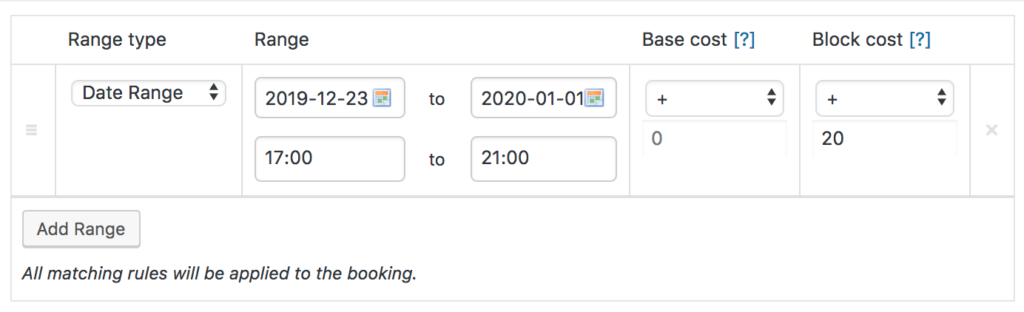
If multiple rows match, all additional costs are used.
Persons
If the booking can be made for multiple persons at once, tick the Has persons checkbox. Once selected, a new tab appears:
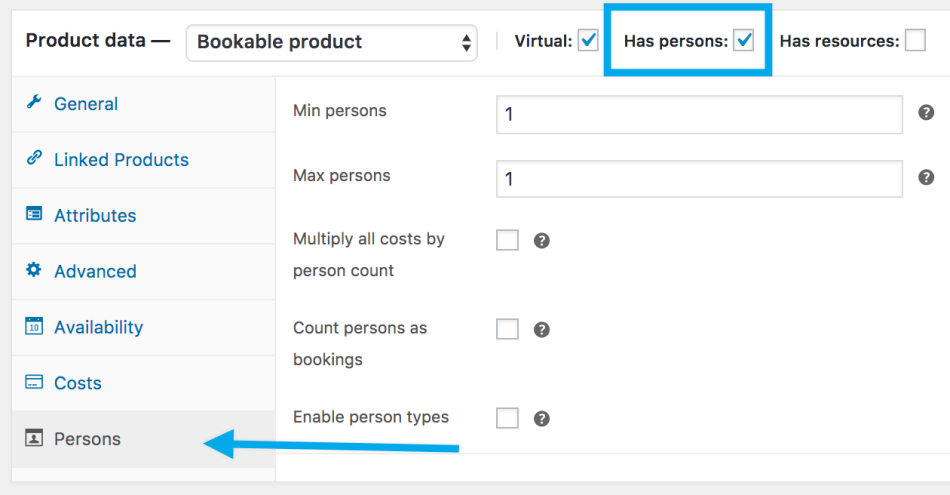
You can set a min and maximum for persons. Similar to duration, the customer can input a value on the frontend booking form, if enabled.
Persons also impacts the following cost options:
- If multiple costs by person count is enabled, all costs are multiplied by the number of persons the customer defines.
- If count persons as bookings is enabled, the person count is used as the quantity against the block. Remember the max bookings per block setting above? That determines the upper limit for allowed persons per block. Once the limit is reached, more persons cannot book.
The Persons tab also allows you to define different prices depending on the person type. You might want to offer a different price for children or for teachers on a museum tour for example. To set up different person types, tick the Enable Persons Type checkbox in your Persons Tab:

Once you tick this checkbox, you have the option to add multiple types.
Give your Person type a name and define the cost for the type. Adding a description is optional.
You can define a minimum and a maximum number for each person type. For example, you could require at least one adult for each booking while making children optional (minimum 0). If you leave Max blank, there are no other restrictions than those of the bookable product itself.
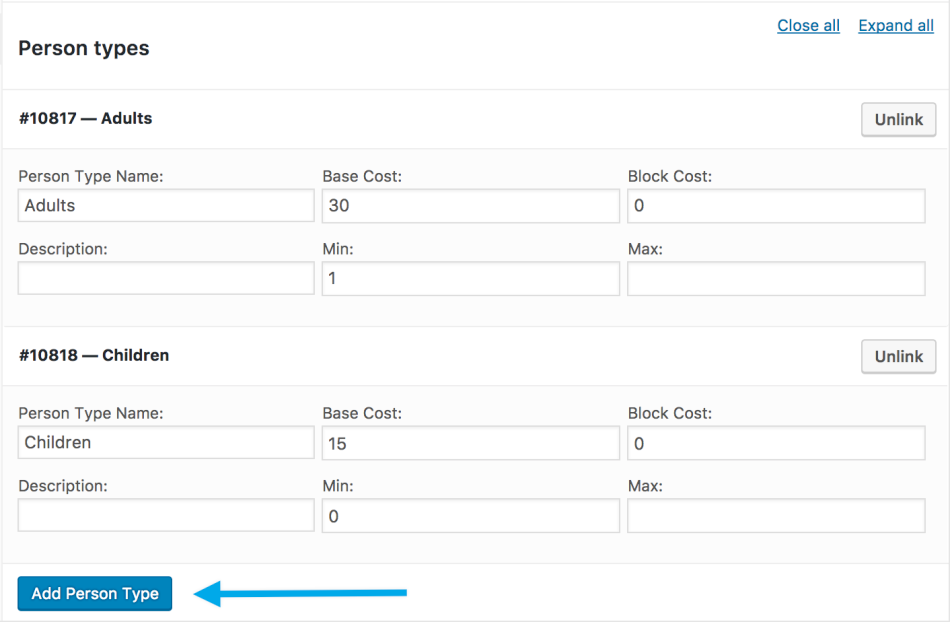
Clicking the Unlink button will remove the person type from the product. The person type will still exist, but be hidden, this is so previously created bookings are not broken.